Upload Files to Dropbox using Python
A Python script that uploads files to Dropbox and refreshes its own access token, so scheduled backups keep working without manual re-authorization.
On this page
Do you spend time manually uploading files to Dropbox? Take control with Python! In this article, I'll share my Python program that simplifies file uploads to Dropbox.
Prerequisites #
Before we dive into the Python script, make sure you have the following:
- A Dropbox account
- Python installed on your machine: Download and install Python from python.org.
Create an App on Dropbox #
To create an app on Dropbox, go to Dropbox Developer Apps.
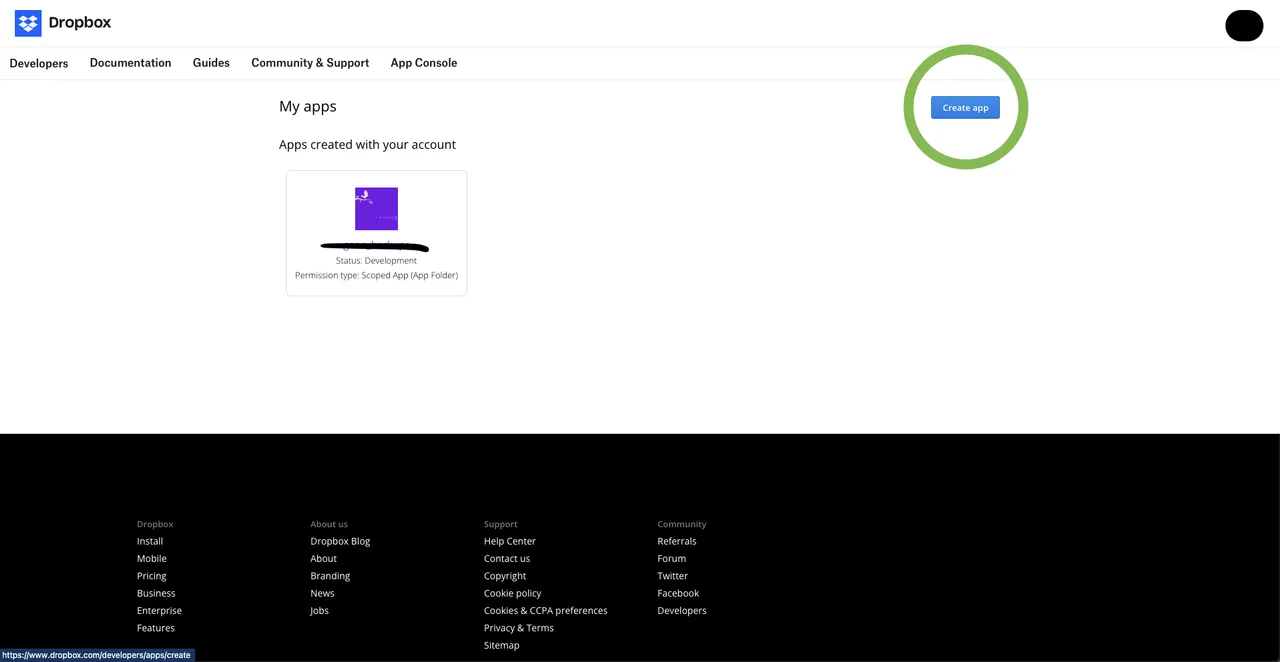
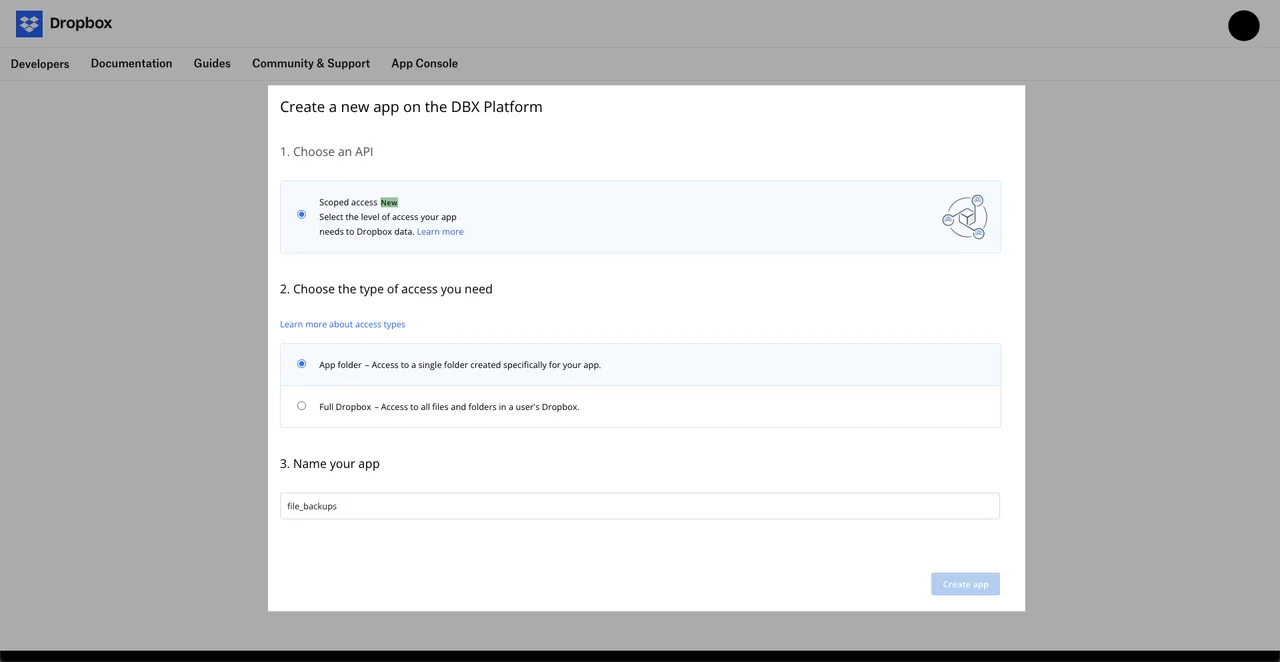
After creating an app you have an App key, App secret please keep it secret, and generate Access Token by clicking on the Generate button.
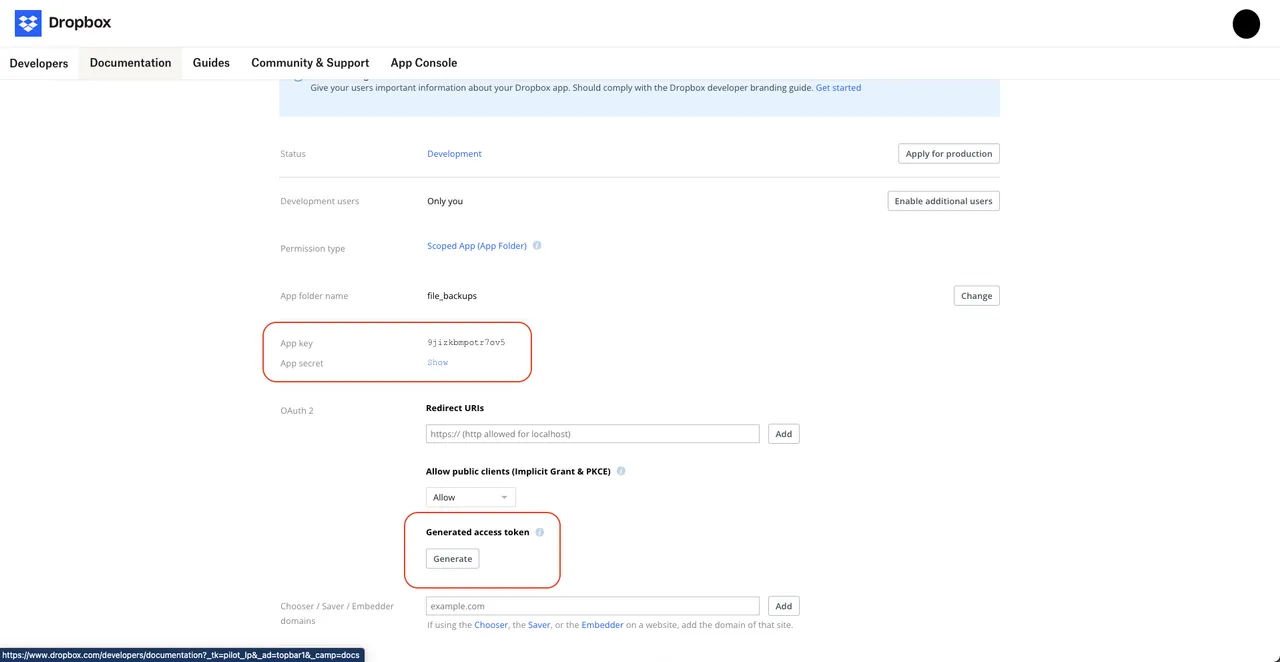
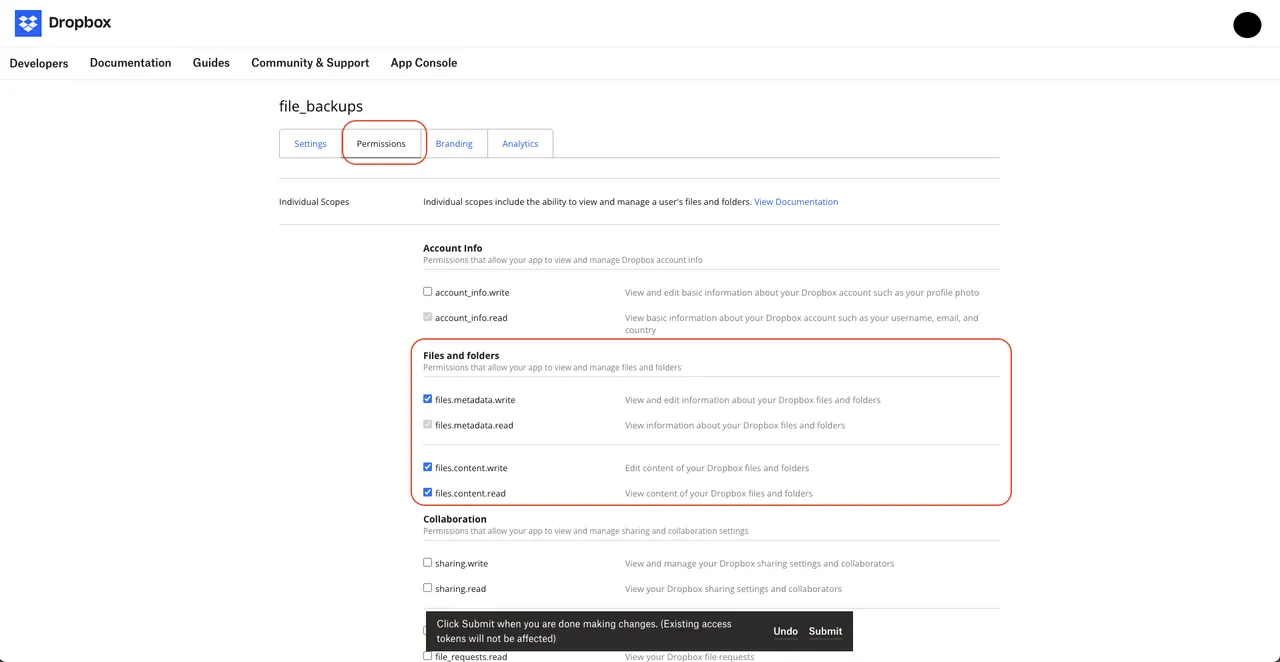
After generating Access Token now go to permissions section and set the required permissions.
Setting Up the Project #
To get started, create a new Python script and install the necessary packages. Open your terminal or command prompt and run the following commands:
pip install dropbox
pip install requests
pip install configparser
pip install pybase64
pip install jsonlib
Obtaining Access Code #
Open your preferred text editor and create a new Python file. You can name it get_access_code.py. Now copy the following code into your Python script file
import webbrowser

APP_KEY = '<APP_KEY>'
url = f'https://www.dropbox.com/oauth2/authorize?client_id={APP_KEY}&' \
      f'response_type=code&token_access_type=offline'

webbrowser.open(url)
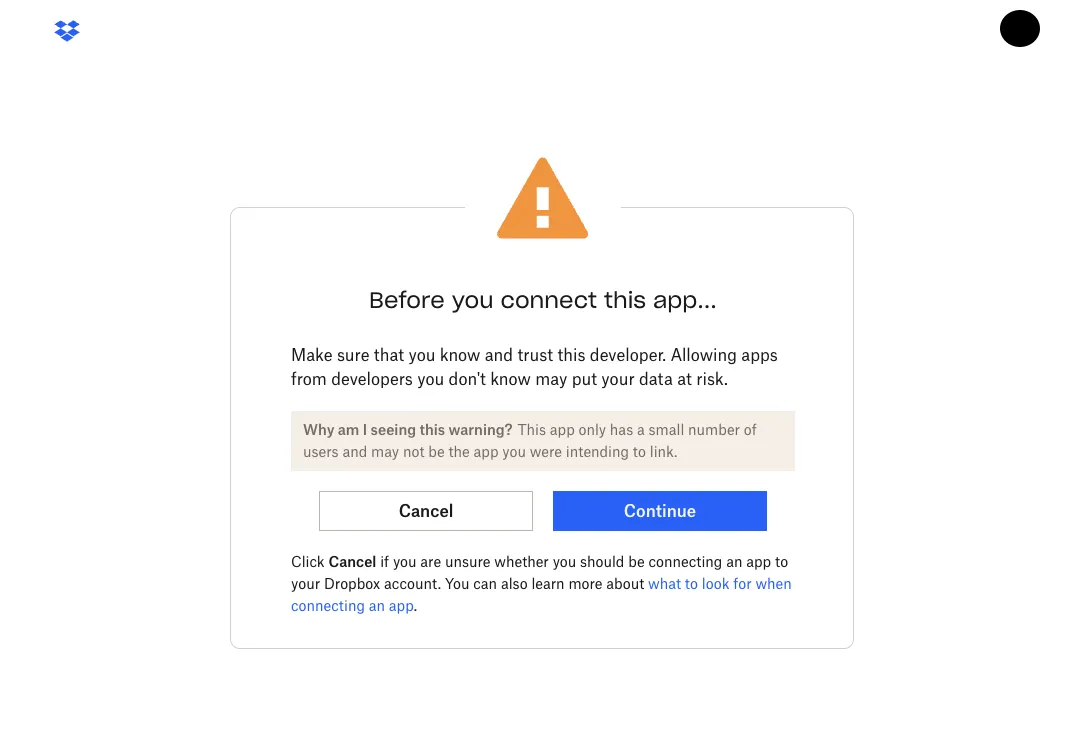
Replace APP_KEY with your Dropbox App key. This code will open a browser window prompting you to log in to your Dropbox account and authorize access for your app. After authorization, Dropbox will redirect you to a URL containing the access code.
Run the Script: Save the Python script and execute it by running the following command in your terminal or command prompt:
python get_access_code.py
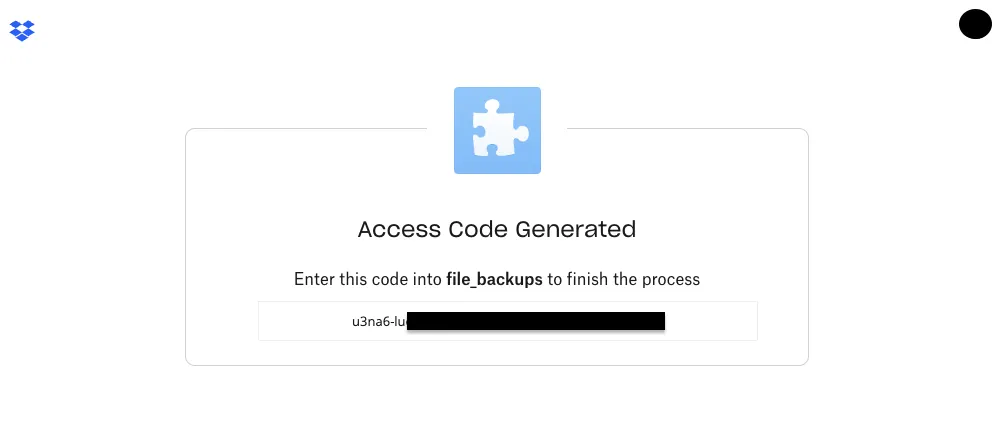
Authorize Dropbox Access: Follow the prompts in your browser to log in to your Dropbox account and authorize access for your app. Once authorized, you will be redirected to a page displaying the access code.
Copy the Access Code: Copy the access code from the browser window. We'll use this access code in our Python script to authenticate with Dropbox's API.
Obtaining Refresh Token #
Open your preferred text editor and create a new Python file. You can name it get_refresh_token.py. Copy the following code into your Python script file:
import base64
import requests
import json

APP_KEY = '<APP_KEY>'
APP_SECRET = '<APP_SECRET>'
ACCESS_CODE_GENERATED = '<ACCESS_CODE_GENERATED>'

BASIC_AUTH = base64.b64encode(f'{APP_KEY}:{APP_SECRET}'.encode())

headers = {
    'Authorization': f"Basic {BASIC_AUTH}",
    'Content-Type': 'application/x-www-form-urlencoded',
}

data = f'code={ACCESS_CODE_GENERATED}&grant_type=authorization_code'

response = requests.post('https://api.dropboxapi.com/oauth2/token',
                         data=data,
                         auth=(APP_KEY, APP_SECRET))
print(json.dumps(json.loads(response.text), indent=2))
Replace APP_KEY, APP_SECRET, and ACCESS_CODE_GENERATED with your Dropbox app key, app secret, and the access code obtained in the previous step.
Run the Script: Save the Python script and execute it by running the following command in your terminal or command prompt:
python get_refresh_token.py
the output is
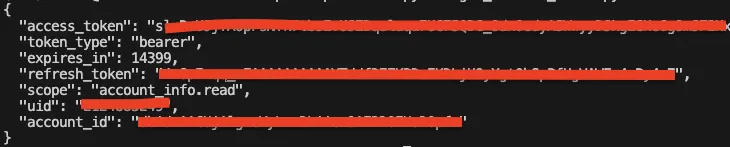
With the refresh token obtained, we can now proceed to integrate it into our Python script for uploading files to Dropbox.
Creating Credentials Configuration File #
To securely store your Dropbox app's credentials and tokens, we'll create a configuration file named credentials.ini.
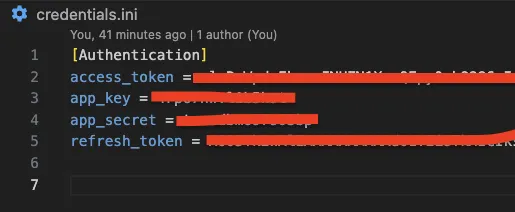
Open your preferred text editor and create a new file named credentials.ini. Copy the following content into the credentials.ini file:
[Authentication]
access_token = <ACCESS_TOKEN>
app_key = <APP_KEY>
app_secret = <APP_SECRET>
refresh_token = <REFRESH_TOKEN>
Replace ACCESS_TOKEN, APP_KEY, APP_SECRET, and REFRESH_TOKEN with the corresponding values:
ACCESS_TOKEN: Your Dropbox app's generated access token. APP_KEY: Your Dropbox app key. APP_SECRET: Your Dropbox app secret. REFRESH_TOKEN: The refresh token obtained from the get_refresh_token.py script.
Save the credentials.ini file in the same directory as your Python scripts.
Writing the Python Script #
Now, let's create the Python script to upload a file to Dropbox. We'll use the Dropbox API and the dropbox Python library for seamless integration.
import os
import dropbox
import requests
import configparser

class DropboxUploader:
    def __init__(self):
        # Configuration parameters
        self.source_directory = ""
        self.local_file_path = 'file.txt'
        self.credentials_directory = "credentials.ini"
        self.dropbox_directory = "/file_backups"

        # Initialize Dropbox API with access token
        self.access_token = self.read_credentials_value("Authentication", "access_token")
        self.dbx = dropbox.Dropbox(self.access_token)

    def read_credentials_value(self, section, key):
        # Read a value from the credentials file
        config = configparser.ConfigParser()
        config.read(self.credentials_directory)

        try:
            return config.get(section, key)
        except (configparser.NoSectionError, configparser.NoOptionError) as e:
            print(f"read_credentials_value function: Error reading config value: {e}")
            return None

    def update_credentials_key_value(self, section, key, value):
        # Update a key-value pair in the credentials file
        config = configparser.ConfigParser()
        config.read(self.credentials_directory)
        config.set(section, key, value)

        with open(self.credentials_directory, 'w') as config_file:
            config.write(config_file)
            print(f"Key '{key}' value updated successfully in section '{section}'")

    def generate_new_access_token(self, app_key, app_secret, refresh_token):
        # Generate a new access token using the provided credentials
        url = "https://api.dropbox.com/oauth2/token"
        headers = {"Content-Type": "application/x-www-form-urlencoded"}
        data = {
            "grant_type": "refresh_token",
            "refresh_token": refresh_token,
            "client_id": app_key,
            "client_secret": app_secret,
        }

        response = requests.post(url, headers=headers, data=data)

        if response.status_code == 200:
            return response.json().get("access_token")
        else:
            print("generate_new_access_token function: Failed to get a new access token.")
            print(f"generate_new_access_token function: Status code: {response.status_code}")
            print(f"generate_new_access_token function: Response: {response.text}")
            return None

    def check_token_validity(self):
        # Check if the existing token is still valid
        try:
            self.dbx.files_list_folder('')
            print("Token is valid")
        except dropbox.exceptions.AuthError:
            print("Token is expired, generating new access token ...")
            app_key = self.read_credentials_value("Authentication", "app_key")
            app_secret = self.read_credentials_value("Authentication", "app_secret")
            refresh_token = self.read_credentials_value("Authentication", "refresh_token")
            new_token = self.generate_new_access_token(app_key, app_secret, refresh_token)

            if new_token:
                self.update_credentials_key_value("Authentication", "access_token", new_token)
                self.access_token = new_token
                self.dbx = dropbox.Dropbox(self.access_token)
        except dropbox.exceptions.DropboxException as e:
            print("check_token_validity function: An error occurred while checking the token:", e)

    def upload_files(self):
        # Upload a file to Dropbox
        try:
            self.check_token_validity()
            file_name = os.path.basename(self.local_file_path)

            with open(self.local_file_path, "rb") as file:
                self.dbx.files_upload(file.read(), f"{self.dropbox_directory}/{file_name}", mode=dropbox.files.WriteMode("overwrite"))
                print(f"File '{file_name}' uploaded successfully to Dropbox.")

        except Exception as e:
            print("upload_files function: An error occurred:", e)

def main():
    # Main program flow
    print("Start uploading files ...")
    dropbox_uploader = DropboxUploader()
    dropbox_uploader.upload_files()
    print("End uploading files")

if __name__ == "__main__":
    main()
Now that your Python script is ready, you can run it to upload a file to your Dropbox account. Execute the following command in your terminal or command prompt:
python main.py
Conclusion #
Congratulations! You've successfully created a Python script to upload files to Dropbox.
Feel free to customize the script further based on your specific requirements. You can add error handling, implement batch uploads, or integrate it into a larger project for a more comprehensive solution.
You can also clone the app from GitHub: python-dropbox-file-uploader.